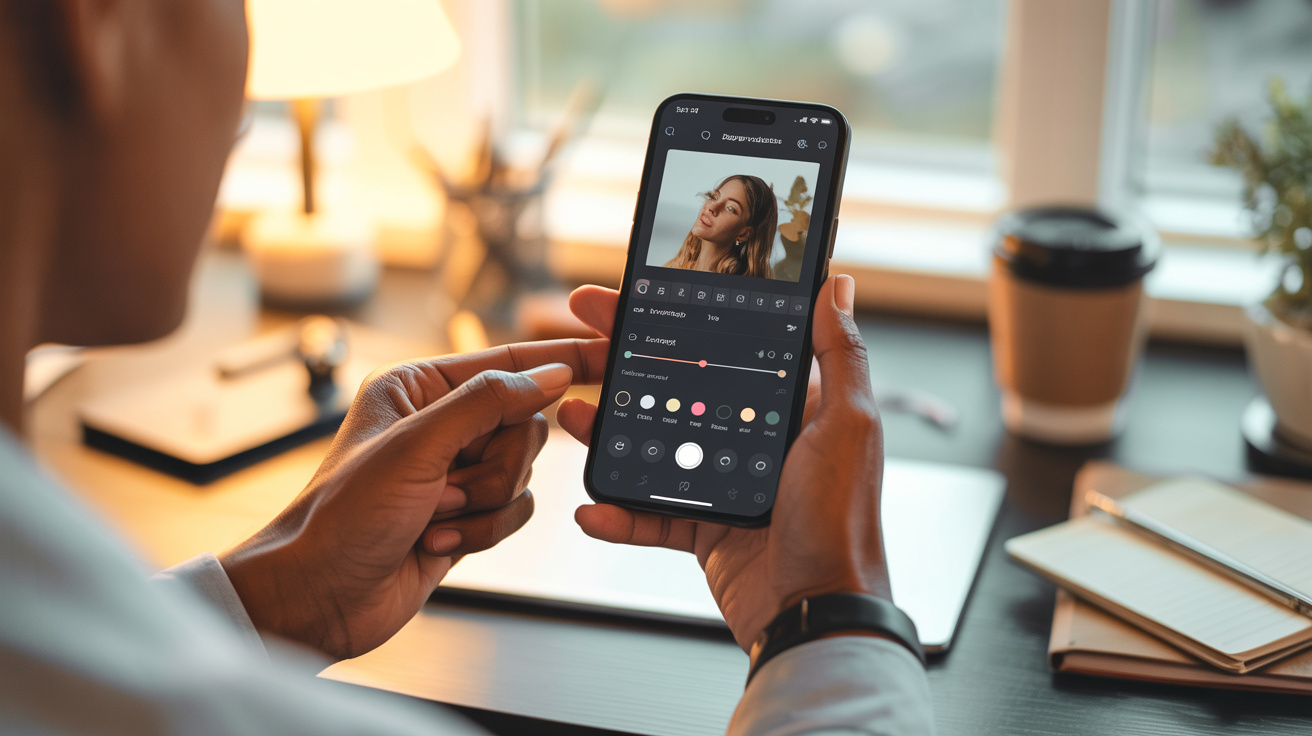
You carry a professional-grade photo editing studio in your pocket every single day — and chances are, you're barely using it. Mobile photo editing has evolved so rapidly over the past few years that editing photos on your phone now rivals what was once only possible with expensive desktop software. The gap between a quick phone snapshot and a polished, professional image is no longer about owning the right tools. It's about knowing the right techniques. Whether you need to edit headshots on your phone for a LinkedIn profile update, touch up product photos for your small business, or create scroll-stopping social media content, this phone photo editing guide will walk you through every step of a professional mobile editing workflow — completely free or nearly so.
This guide is for professionals refreshing their personal brand, content creators building a consistent visual presence, small business owners editing team and product photos, entrepreneurs who need polished imagery fast, and anyone who wants professional photo editing results without a desktop or an expensive subscription. By the end, you'll have a repeatable smartphone editing workflow that produces results your audience will notice.
Why Mobile Photo Editing Has Become a Professional Standard
The numbers are clear: over 90% of social media content is now shot and edited on smartphones. But the shift to mobile photo editing isn't just about convenience — it's about capability. Modern smartphone editing apps like Adobe Lightroom Mobile, Snapseed, and VSCO offer tools that were once exclusive to desktop powerhouses like Photoshop and Lightroom Classic. RAW file support, advanced color grading, selective adjustments, healing brushes, curves, and AI-powered enhancements are all available right from your phone.
For content creators and business owners, the speed advantage is enormous. You can shoot a headshot, edit it to professional standards, and post it to LinkedIn — all within fifteen minutes, all from the same device. There's no waiting to transfer files to a computer, no booting up heavy software, no switching between devices. The entire workflow lives on one screen.
The real differentiator between a "phone edit" and a "professional edit" is no longer the tool — it's technique. Someone who understands exposure correction, white balance, color grading, and sharpening will produce better results on a phone than someone randomly sliding filters on a desktop. This guide gives you that technique.
Choosing the Right Mobile Editing App for Your Needs
Before diving into workflow, you need the right app. Here are the three best options, each suited to different needs and skill levels.
Adobe Lightroom Mobile (Free & Paid)
Lightroom Mobile is the gold standard for professional mobile editing. It provides the most comprehensive set of tools available on any mobile platform, and its free tier is genuinely powerful.
Best for: Consistent professional results, preset-based workflows, RAW editing, and serious photographers who want desktop-class control.
Key features: Exposure and tone controls, color mixer (HSL), curves, split toning, healing brush, selective adjustments with masking, geometry correction, and detail sharpening. The paid tier adds cloud sync, RAW support across devices, selective edits with AI masking, and the healing brush.
Free vs. paid: The free version includes all basic adjustment tools — exposure, contrast, highlights, shadows, white balance, vibrance, saturation, clarity, and more. The paid version (bundled with Adobe Creative Cloud) unlocks selective edits, healing, geometry, RAW presets, and cloud sync. For most users editing JPEGs on their phone, the free version covers 80% or more of professional needs.
Snapseed (Free)
Snapseed, developed by Google, is a completely free mobile editing app that punches far above its price tag. It offers a surprisingly deep set of tools wrapped in a clean, intuitive interface.
Best for: Quick, powerful edits with granular selective adjustments — especially for headshots and portraits.
Key features: Tune Image (exposure, contrast, saturation, ambiance, highlights, shadows, warmth), selective tool (apply edits to specific areas by placing control points), healing tool for blemish removal, portrait mode for face-specific adjustments (skin smoothing, eye clarity, face spotlight), HDR scape, and a robust set of filters.
Best use cases: Headshots, portraits, quick social media edits, and anyone who wants professional results without paying a cent. The selective tool alone makes Snapseed incredibly powerful for targeted edits — like brightening someone's face without blowing out the background.
VSCO (Free & Paid)
VSCO has built its reputation on beautiful, film-inspired presets that give photos a cohesive, editorial look with minimal effort.
Best for: Building a consistent aesthetic or brand look, particularly for social media feeds and lifestyle content.
Key features: Curated film emulation presets, skin tone adjustment tools, HSL controls, grain and fade effects, and a community of creators sharing aesthetic inspiration.
Best use cases: Lifestyle brand content, Instagram feed consistency, social media creators who want a signature look, and anyone who prefers a preset-first editing approach. VSCO's paid membership unlocks the full preset library and advanced tools, but the free version includes a solid starter set.
When to Use AI Enhancement Instead
Sometimes the fastest path to a professional photo isn't manual editing at all — it's AI enhancement. Tools like Glowup use artificial intelligence to analyze your photos and apply professional-grade enhancements automatically: correcting lighting, improving skin tones, optimizing backgrounds, and ensuring the result looks polished and natural. For headshots, team photos, and professional branding images, AI photo enhancement on mobile can save hours of manual editing while delivering results that rival professional retouching. When you need consistent, high-quality results across multiple photos — like updating your entire team's headshots — AI is not just faster, it's often better than manual editing alone.
Want professional-quality headshots without the editing complexity? Glowup's AI photo platform transforms your photos into polished professional images in minutes. Try it free at glowuplab.app.
The Essential Mobile Editing Workflow (Step-by-Step)
Regardless of which app you use, the workflow for editing photos on your phone follows the same logical sequence. Master this order and you'll produce consistent, professional results every time.
Step 1: Start with Exposure and Contrast
Every edit begins with exposure — the overall brightness of your image. If your photo is too dark or too bright, no amount of color grading will save it.
Adjust exposure first. Slide the exposure control until the overall brightness looks natural. Don't worry about perfection yet — you'll refine with highlights and shadows next.
Highlights and shadows. Pull highlights down to recover detail in bright areas (like a blown-out sky or a shiny forehead). Push shadows up to reveal detail in dark areas (like under the chin or in hair). This single adjustment — pulling highlights down and lifting shadows up — instantly makes most phone photos look more professional.
Contrast. Add subtle contrast to give the image depth and dimension. Avoid pushing contrast too high, which can make photos look harsh and lose subtle tonal transitions.
Blacks and whites. These set the absolute tonal range of your image. Pull blacks down slightly for richer darks; push whites up slightly for brighter highlights. Together, they create a full-range, punchy image without the harshness of excessive contrast.
Step 2: Fix White Balance and Color Temperature
White balance determines whether your photo looks warm (yellowish), cool (bluish), or neutral. Getting white balance right is critical for professional results — especially for headshots and product photos where accurate color matters.
Temperature: Slide toward warmer (yellow) tones for a golden, inviting feel, or toward cooler (blue) tones for a crisp, clean look. For headshots, slightly warm is usually most flattering. For product photos, neutral is typically best.
Tint: Corrects green or magenta color casts. Most photos need only minor tint adjustment, but fluorescent lighting often introduces a green cast that needs correction.
Matching white balance across a series: If you're editing multiple photos from the same shoot — like a set of team headshots or a product catalog — set white balance on one photo, then copy those settings to the rest. In Lightroom Mobile, you can copy and paste edits. In Snapseed, you can use the same manual values across each image.
Step 3: Color Grading and Saturation
Color is where photos go from "correctly exposed" to "visually compelling." But it's also where most mobile editing mistakes happen.
Vibrance vs. saturation: Saturation boosts all colors equally. Vibrance selectively boosts muted colors while protecting already-saturated tones (particularly skin tones). For portraits and headshots, always use vibrance over saturation. Pushing saturation on portraits makes skin look orange, flushed, or unnatural — it's the most common mobile editing mistake.
HSL panel (Hue, Saturation, Luminance): This is your precision tool for individual color control. You can adjust the hue, saturation, and brightness of individual color channels — red, orange, yellow, green, blue, purple. For headshots, focus on the orange and red channels (which control skin tones) and reduce their saturation slightly for a natural, flattering look. For landscape or product photos, boost specific colors to make them pop.
Avoid over-saturating. If colors look like they belong in a cartoon, you've gone too far. Professional editing is subtle. Pull back until the image looks like an enhanced version of reality, not a replacement for it.
Step 4: Sharpening and Noise Reduction
Sharpening adds crisp definition to your image, while noise reduction smooths out the grain that appears in low-light phone photos.
When to sharpen: Sharpen portraits and headshots to add crispness to eyes, eyebrows, and hair. Sharpen product photos to make textures and details pop. Don't over-sharpen backgrounds or smooth areas like skin — this creates visible halo artifacts.
Noise reduction: If you shot in low light, your phone likely boosted its ISO, introducing noise (grain). Use the noise reduction slider to smooth this out, but don't overdo it — aggressive noise reduction can make skin look plastic and erase fine detail.
Masking sharpening: In Lightroom Mobile and Snapseed, you can apply sharpening selectively — only to faces, eyes, or product details — while leaving backgrounds and smooth areas untouched. This is one of the most valuable techniques in professional mobile editing.
Step 5: Cropping and Straightening
Cropping is more than just trimming edges — it's about composition, platform optimization, and directing the viewer's attention.
Platform-specific crop ratios:
- 1:1 — Instagram square posts, profile pictures
- 4:5 — Instagram feed (vertical, takes up maximum screen space)
- 16:9 — YouTube thumbnails, LinkedIn cover images, widescreen displays
- 1.91:1 — LinkedIn link preview images, Facebook shared links
- 9:16 — Instagram Stories, TikTok, YouTube Shorts
Straightening: Check your horizon lines and vertical elements. Even a slight tilt — one or two degrees — makes a photo feel "off" subconsciously. Use the straighten tool to level the image.
Rule of thirds: When cropping, position key elements (eyes in a headshot, the product in a flat lay) along the thirds lines or at their intersections. Most editing apps overlay a thirds grid when cropping.
Step 6: Final Touches — Vignette, Grain, and Export
These optional finishing touches can elevate a good edit to a great one — but only when used with restraint.
Vignette: A subtle darkening of the edges draws the viewer's eye to the center of the frame — usually the subject's face or the product. Keep it gentle; heavy vignetting looks dated.
Grain: Adding subtle film grain can give lifestyle and brand content an organic, editorial feel. Avoid grain for professional headshots and product photos, where clean and crisp is the goal.
Export settings: Export at the highest quality your platform supports. For Instagram, 1080px wide is standard for feed posts. For LinkedIn, 1200x627px for link images. Always export as JPEG for social media and PNG if you need transparency or maximum quality for print.
Editing Headshots and Professional Photos on Mobile
Headshots have specific requirements that differ from general photo editing. Here's how to adapt the workflow for professional portraits and headshots.
Skin tone preservation: Use vibrance (never saturation) for portraits. In the HSL panel, reduce orange and red saturation slightly to keep skin looking natural rather than flushed. Adjust the orange luminance channel to brighten or darken skin without affecting other colors.
Reducing shine without losing texture: Use the highlights slider to pull down shine on foreheads and noses. In Snapseed, use the selective tool to target shiny areas specifically. Avoid using smoothing or blur tools on shine — they destroy skin texture and create an artificial, over-processed look.
Eye enhancement: Apply a small amount of clarity or sharpness selectively to the eyes only. In Snapseed, place a selective control point on each eye and increase structure and sharpness. Eyes are the first thing viewers look at in a headshot — making them slightly sharper and more defined creates an immediate sense of professionalism.
What NOT to do: Don't over-smooth skin (it removes natural texture and looks fake). Don't use liquify or reshape tools on facial features (it creates uncanny distortion). Don't replace backgrounds with obviously fake bokeh or stock backdrops. These are the hallmarks of amateur editing that undermine credibility.
How AI tools complement mobile editing: For professional headshots, combining your manual editing skills with AI enhancement from platforms like Glowup delivers the best results. You handle the creative decisions — color grading, cropping, overall mood — while AI handles the technical perfection: consistent lighting correction, natural skin enhancement, background optimization, and ensuring every headshot in a series looks cohesive.
Editing Product and Business Photos on Mobile
Product and business photos require a different emphasis than portraits. Accuracy and consistency are the priorities.
Exposure and white balance are critical. A product that looks warm-toned on your website but cool-toned on your social media creates brand confusion. Set white balance carefully — use a neutral reference point in the image if possible — and keep it consistent across every product image.
Background cleanup: Use the healing or clone stamp tool to remove dust, scratches, wrinkles in backdrops, or any distracting elements. A clean background makes any product look more premium.
Color accuracy: Resist the temptation to over-saturate product colors. If a customer orders a navy blue shirt that looks electric blue in your photos, you've created a returns problem, not a branding success. Edit for accuracy first, appeal second.
Consistency across a product catalog: If you shoot thirty products, they should all have the same exposure, white balance, and color treatment. Use presets (covered below) to ensure consistency without re-editing each image from scratch.
Quick batch editing with presets: In Lightroom Mobile, edit one product photo to perfection, save the edit as a preset, then apply it to every subsequent photo. Fine-tune individual images as needed, but the preset gets you 90% of the way there instantly.
Editing Social Media Content on Mobile
Social media editing has its own set of priorities: speed, consistency, platform optimization, and visual brand cohesion.
Platform-specific considerations: Instagram rewards warm, vibrant imagery with high contrast. LinkedIn favors clean, professional, well-lit photos. TikTok thumbnails need bold contrast and clear subjects to stand out in a feed. Tailor your editing style to each platform rather than applying one blanket edit to everything.
Building a consistent visual brand with presets: Your social media feed is a portfolio. When someone lands on your profile, the visual consistency of your grid communicates professionalism and intentionality. Choose two to three presets that define your brand aesthetic and apply them consistently.
Speed editing for high-volume content creators: If you're posting daily, you can't spend thirty minutes editing each image. Build a streamlined workflow: shoot in good light, apply your brand preset, make minor exposure and white balance tweaks, crop for the platform, and export. Five minutes or less per image.
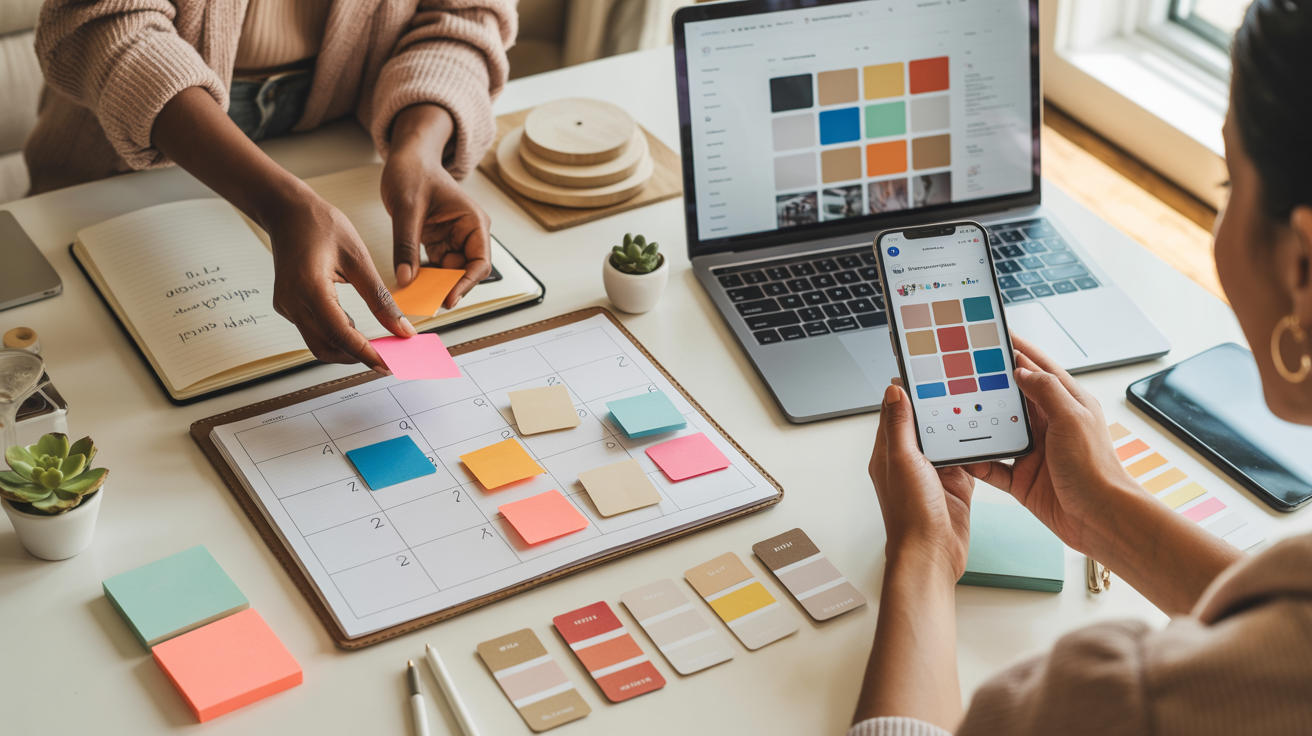
Color palette consistency across your feed: Before posting, preview how the new image looks alongside your existing grid. Does it fit the overall color palette and mood? Instagram's grid preview and third-party planning apps can help you maintain visual harmony.
Creating and Using Presets for Consistent Results
Presets are saved collections of edit settings that you can apply to any photo with a single tap. They are the single most powerful tool for brand consistency and editing speed.
What presets are and why they matter: A preset captures every adjustment you've made — exposure, contrast, white balance, color grading, sharpening, vignette — and lets you apply it to future photos instantly. For businesses and content creators, presets ensure that every image you publish feels like it belongs to the same brand.
How to create your own preset in Lightroom Mobile: Edit a photo to your ideal look. Tap the three-dot menu and select "Create Preset." Name it something descriptive (e.g., "Brand Warm Portrait" or "Product Clean Neutral"). Choose which settings to include. Save. Now you can apply that preset to any future photo as a starting point.
Applying presets as a starting point, then fine-tuning: No preset works perfectly on every photo. Apply your preset first, then adjust exposure and white balance for the specific lighting conditions of each image. Think of presets as getting you 80% of the way there — the remaining 20% is where your eye and judgment come in.
Sharing presets across devices: Lightroom Mobile syncs presets across devices when logged into the same Adobe account. You can also export presets as .xmp or .dng files to share with team members, ensuring everyone edits to the same brand standard.
Common Mobile Editing Mistakes to Avoid
Even experienced editors make these mistakes. Recognizing them is the first step to avoiding them.
Over-sharpening: Creates visible halo artifacts around edges — bright lines around dark objects and dark lines around bright objects. If you can see the sharpening, it's too much.
Crushing blacks: Dragging the blacks slider too far down eliminates all shadow detail, creating flat, lifeless dark areas. Shadows should be dark, not featureless.
Over-saturating skin tones: Boosting saturation globally makes skin look orange, red, or sunburned. Use vibrance for portraits and adjust the HSL panel for skin-specific control.
Inconsistent editing across a series: If you're publishing a set of photos — team headshots, a product line, an event recap — inconsistent editing (different white balance, different color treatment, different contrast levels) looks unprofessional. Use presets and batch editing to maintain consistency.
Exporting at wrong resolution or format: Uploading a tiny, compressed image to LinkedIn or a massive file to Instagram (where it'll be compressed anyway) wastes quality or bandwidth. Know your platform's optimal dimensions and export accordingly.
When AI Photo Enhancement Is the Better Choice
Manual mobile editing gives you creative control, but there are situations where AI photo enhancement is faster, more consistent, and produces better results.
Professional headshots at scale: If you need to edit twenty team headshots to the same professional standard, manual editing takes hours. AI enhancement delivers consistent, polished results across every image in minutes.
Consistent team photos: Matching lighting, skin tone treatment, and background quality across photos taken in different locations and lighting conditions is extremely difficult manually. AI handles this effortlessly.
Complex background replacement: Removing or replacing backgrounds convincingly requires advanced compositing skills. AI platforms handle background optimization naturally, maintaining realistic lighting and edge detail.
How Glowup's AI platform handles what manual editing can't: Glowup analyzes your photos holistically — lighting, skin tones, backgrounds, composition — and applies professional-grade enhancements tailored to the image's specific needs. The results are natural, consistent, and fast. For headshots, brand photos, and professional content, it delivers what would take an experienced editor significant time to achieve manually.
Combining mobile editing with AI enhancement for best results: The ideal workflow for many professionals is to use AI enhancement for the heavy lifting — lighting correction, skin enhancement, background optimization — and then apply your personal creative touches (color grading, cropping, brand presets) in a mobile editor. This gives you both consistency and creative control.
Ready to take your photos to the next level? Glowup's AI photo platform helps professionals, entrepreneurs, content creators, and small business owners create stunning, polished images — no editing expertise required. Start your free trial at glowuplab.app/signup.
Conclusion
Mobile photo editing is no longer a compromise — it's a professional standard. The tools available on your phone today are more powerful than what professionals had on their desktops a decade ago. What separates a forgettable snapshot from a polished, professional image is not the software you use — it's the technique you apply.
The workflow is simple and repeatable: start with exposure and contrast, fix white balance and color temperature, refine with color grading and saturation, sharpen and reduce noise, crop for your platform, and export with the right settings. Master this sequence and you'll produce consistent, professional-quality results every time — whether you're editing headshots on your phone, creating product photos for your business, or building a content creator's visual brand.
For those moments when you need more — professional headshots at scale, consistent team photos, complex enhancements — combine your mobile editing skills with AI photo enhancement tools like Glowup for results that would otherwise require a professional retoucher. The best results come from combining human creativity with AI precision.
The camera in your pocket is already more capable than you realize. Now your editing skills match it. Open your favorite app, follow this workflow, and start creating photos that make people stop scrolling.